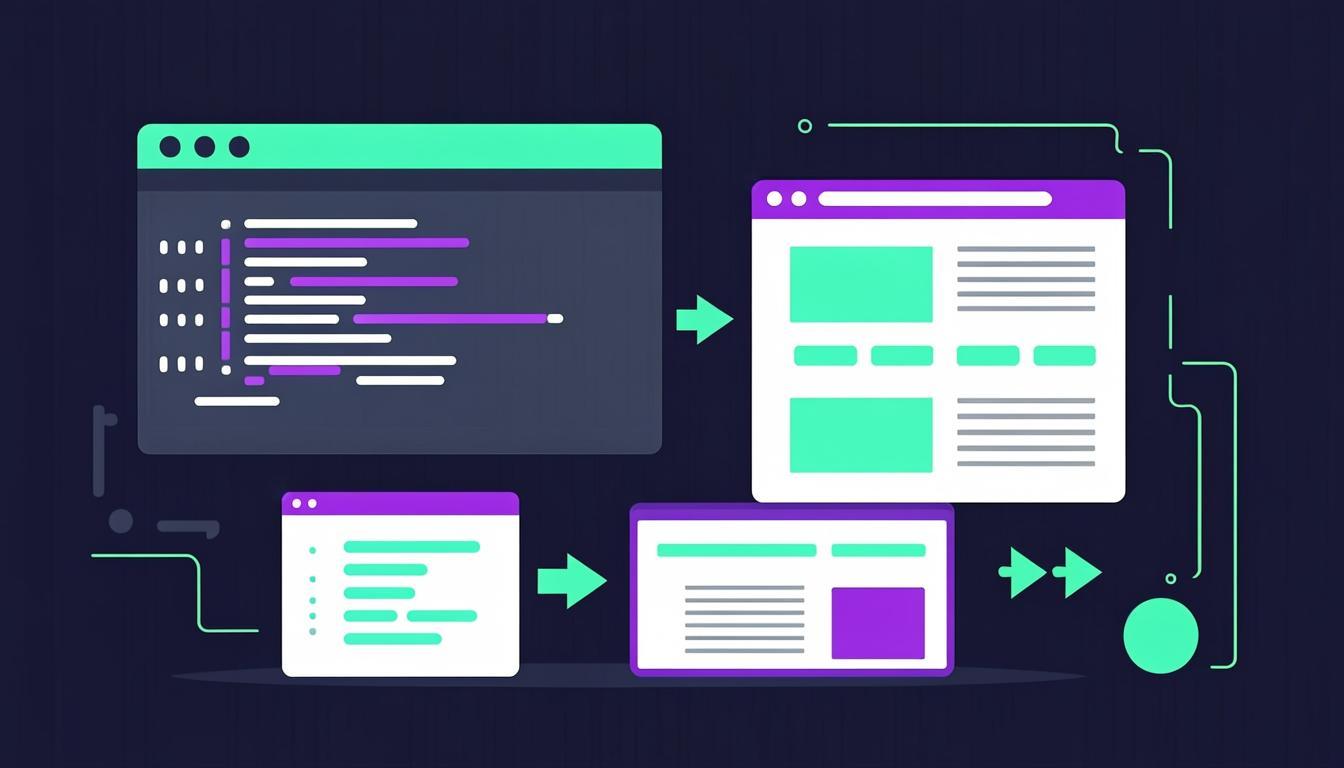
If you are learning web development, there is a moment almost everyone hits: you write your first HTML in a notes app, save it as a file, double-click it — and then every time you change something you have to switch back to the browser and refresh. It works, but it feels like walking with your shoelaces tied together. An online HTML editor with live preview removes that friction completely. You type, the page updates, you keep going.
In this guide you will learn what a live-preview editor actually does, when to use one instead of a full program like VS Code, and how to build and share your first page in about five minutes — using nothing but a browser tab.
What does "live preview" actually mean?
A live preview means the result pane re-renders your code automatically as you type, without you pressing a Run button or reloading the page. Good editors add a small delay (usually around one second) so the preview does not flicker on every keystroke — you type a sentence, stop, and the preview is already up to date.
Under the hood the editor takes your HTML, wraps it together with your CSS and JavaScript, and injects the combined document into a sandboxed frame. Your browser does all the rendering locally, which is why no account or server round-trip is needed and why the editor keeps working even if your internet drops mid-session.
When an online editor beats installing software
There is a time for full IDEs — real projects with builds, version control and frameworks need them. But a surprising amount of everyday work is faster in a browser editor:
- Learning: your first weeks of HTML/CSS are about experimenting, not configuring tools
- Quick tests: checking how a snippet renders before pasting it into a real project
- Locked-down computers: school and office machines often block software installs, but not websites
- Helping someone: paste their code, spot the bug together, send back a share link
- Prototyping: rough out a layout or animation idea in two minutes instead of scaffolding a project
Write your first page in the editor
Open the CodeLive Studio editor and replace the starter HTML with this:
<!DOCTYPE html>
<html>
  <head>
    <title>My first page</title>
  </head>
  <body>
    <h1>Hello, internet!</h1>
    <p>I am writing this in a browser tab.</p>
  </body>
</html>
Now style it without touching the HTML tab
Switch to the CSS tab and type the following. Watch the preview update the moment you stop typing — this feedback loop is what makes live editors such an effective way to learn CSS.
body {
  font-family: system-ui, sans-serif;
  background: #0f172a;
  color: #f8fafc;
  display: grid;
  place-items: center;
  min-height: 100vh;
  margin: 0;
}
h1 { color: #34d399; }
Share your work with a link
Press Save and the editor stores your project and gives you a plain URL. Anyone who opens it sees exactly what you built — no account required on their side, and nothing for you to deploy or host. It is the fastest way I know to send a work-in-progress to a friend, a teacher or a code reviewer.
When the project outgrows the playground, use Download: a single self-contained HTML file for simple pages, or a ZIP with separate index.html, style.css and script.js that opens cleanly in VS Code.
Common beginner questions
Do I need to install anything? No — that is the whole point. Everything runs in a modern browser on Windows, macOS, Linux, Android or iOS.
Is my code private? Your work auto-saves to your own device and only leaves it when you deliberately press Save to create a share link.
Can I use it offline? Once the page has loaded, editing and previewing keep working without a connection.
Ready to try it? Open the free editor and keep this guide beside you — the first page takes about one minute.
Try everything from this article live
The CodeLive Studio editor runs the examples above with a one-second live preview — no account, no install.
Open the free editor